




 Blog
 Free tools
 Help center




OpenAI opened Businesses in ChatGPT as a beta on 10 November 2026. It gives businesses a profile inside a product that OpenAI says reaches 1.2 billion people a week.
Most store owners read the news as a ranking play: claim the profile, get recommended more often. That's the wrong expectation.
Benji Shomair, OpenAI's VP of monetization, told Digiday that claiming a business should not change how often it appears. What you get instead is control over the facts ChatGPT uses about your store, plus first numbers on how often it mentions you.
The feature is open to eligible businesses wherever ChatGPT is available, not only Shopify stores, and Shopify is one of four ways to verify. This guide covers who can use each part and 6 steps to claim and verify. It also shows how to read Insights, with 4 examples of what to change and 5 week-one mistakes to avoid.
Steps and limits were checked on 12 November 2026 against OpenAI's beta announcement, Shopify's help center and early tester reports. The feature is in beta, so menus and limits may change.
- What it is
An OpenAI beta where you claim your business profile in ChatGPT, sync your products and see how often ChatGPT mentions you.
- Who can use it
Eligible businesses with a website can claim a profile wherever ChatGPT is available. The Business Agent is for US ecommerce and online service businesses only.
- What it costs
Nothing at launch. ChatGPT ads are billed separately, and OpenAI hasn't ruled out charging later.
- Where to start
Business Hub in the ChatGPT sidebar, or Sales channels > Agentic > ChatGPT in Shopify admin.
- What to watch
You see topics and totals, never the prompts shoppers typed. A published profile can't be deleted, so check it before it goes live.
What is Businesses in ChatGPT?
Businesses in ChatGPT is OpenAI's program for businesses to claim and manage how they appear in ChatGPT. You run it from Business Hub, a dashboard you open from the ChatGPT sidebar or at chatgpt.com/business-hub. It has four parts:
- Business profile: your description, category, website, logo, cover photo, contact details, hours, and delivery and return policies. OpenAI's product page says ChatGPT may use this information to answer customer questions.
- Product feed: product details, prices and stock. Shopify stores sync it through Shopify Catalog, the product data Shopify shares with AI channels (our Shopify UCP guide explains how it works).
- Insights: how often ChatGPT mentions you, how often people click your links, and the topics where you come up.
- Business Agent: a chat inside ChatGPT that speaks for your business, using your product data, your policies and guidelines you write. ChatGPT labels these conversations so shoppers can tell them apart from its own replies.
Three things share part of the name, and none of them is this feature. It isn't the ChatGPT Business subscription, a paid workspace plan for teams. It isn't ChatGPT ads either, which you buy separately.
And it isn't Agentic Storefronts, the Shopify feature that lists your products in ChatGPT so shoppers can buy them. Shopify says the ChatGPT app isn't required for selling there.
Who can use it and what it costs
Each part has its own eligibility rules, so check which rows apply to you before you start. Claiming requires a website, not a ChatGPT ads account.
| Part | Who can use it | Where | Cost at launch |
|---|---|---|---|
| Business profile and blue check | Owners or authorized representatives of a business with a website | Wherever ChatGPT is available. Local stores and restaurants can only claim existing US listings | Free |
| Product feed | Businesses that sell products | Shopify stores sync automatically. Uploaded feeds target the US, and other markets need OpenAI to confirm first | Free |
| Insights | Businesses that passed the Persona ID check (Step 4) | Same as the profile | Free |
| Business Agent | Eligible ecommerce and online service businesses with a website | US only | Free |
| Sponsored Business Agent | Selected advertisers in a limited test | Not open for sign-up | Paid ads |
Shomair also told VentureBeat that OpenAI may start charging in the future. For now, you pay nothing unless you choose to advertise.
If you're outside the US, plan around the profile, the product feed and Insights. Those three are where the value is for you today, not the agent.
What you need before you start
You need five things. Gathering them first saves you from a verification that stalls halfway.
- A ChatGPT account the business will keep. The account you confirm during the claim manages the listing. Use one tied to a business email, not a staff member's personal login.
- Access to your DNS settings or your Shopify admin. Either one verifies your claim without waiting on a phone code. DNS settings live wherever your domain is managed, such as Shopify, GoDaddy or Cloudflare.
- ID and business records for Persona. Persona is the identity service OpenAI uses. It may ask for a government-issued ID, business registration details and proof you can act for the business, and the details must match official records.
- Your real delivery and return terms. Write down processing time, delivery time, your free shipping threshold, your return window and who pays return postage.
- A site OpenAI's crawler can read. OAI-SearchBot is the crawler ChatGPT uses to show sites in search, and OpenAI's crawler documentation recommends allowing it in robots.txt.
How to claim your business in ChatGPT in 6 steps
To claim your business, check your site, find your listing, verify ownership and pass Persona. Then fix your profile before it goes live and confirm it worked. In detail:
Step 1: Check ChatGPT can read your site, and record what it says today
Open yourstore.com/robots.txt and search for "OAI-SearchBot". If it sits under a Disallow line, ChatGPT search can't read your pages, and no profile will fix that.
robots.txt can't catch every block. One tester who claimed a business found their host was returning 403 errors to OpenAI's crawlers while Google could read the site normally. If you use a firewall or bot protection app, check that it lets OAI-SearchBot through.
Then ask ChatGPT about your store before you change anything. Use a temporary chat so your own history doesn't shape the response, and save each reply with the date. These five prompts make a good baseline:
1. What is [store name] and what does it sell?
2. How long does [store name] take to ship to [your main country], and what does shipping cost?
3. What is [store name]'s return policy?
4. What are good [product type] brands for [use case]?
5. Is [store name] legit? What do customers say about it?
You'll rerun the same five prompts in Step 6 and again a month later. Without them, you can't tell what your profile changed.
Step 2: Find your listing in Business Hub
The path depends on whether you connect a Shopify store.
If you run a Shopify store: in Shopify admin, go to Sales channels > Agentic, select ChatGPT and install OpenAI's ChatGPT app. Then open Apps > ChatGPT, log in with the account from the list above, and claim the business ChatGPT matches to your store.
If there's no match, create a new profile. Connecting the store also verifies your business and syncs your catalog, so you can skip Step 3.
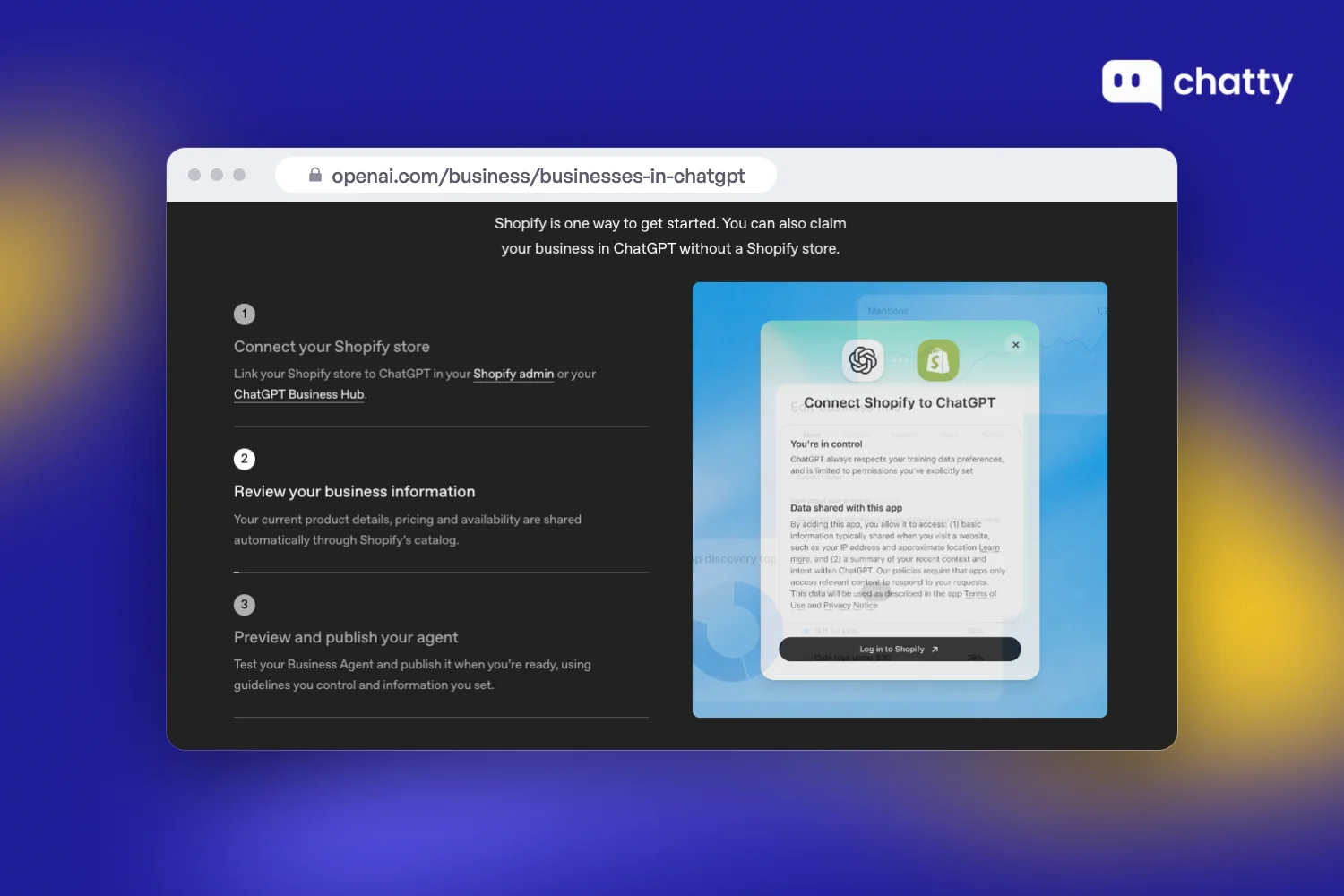
Image via OpenAI. The third step, publishing a Business Agent, only applies to eligible US businesses.
The App Store lists the app as ChatGPT by OpenAI, and it's free. The same app connects ChatGPT ad accounts, but you don't need the ad features to claim your business.
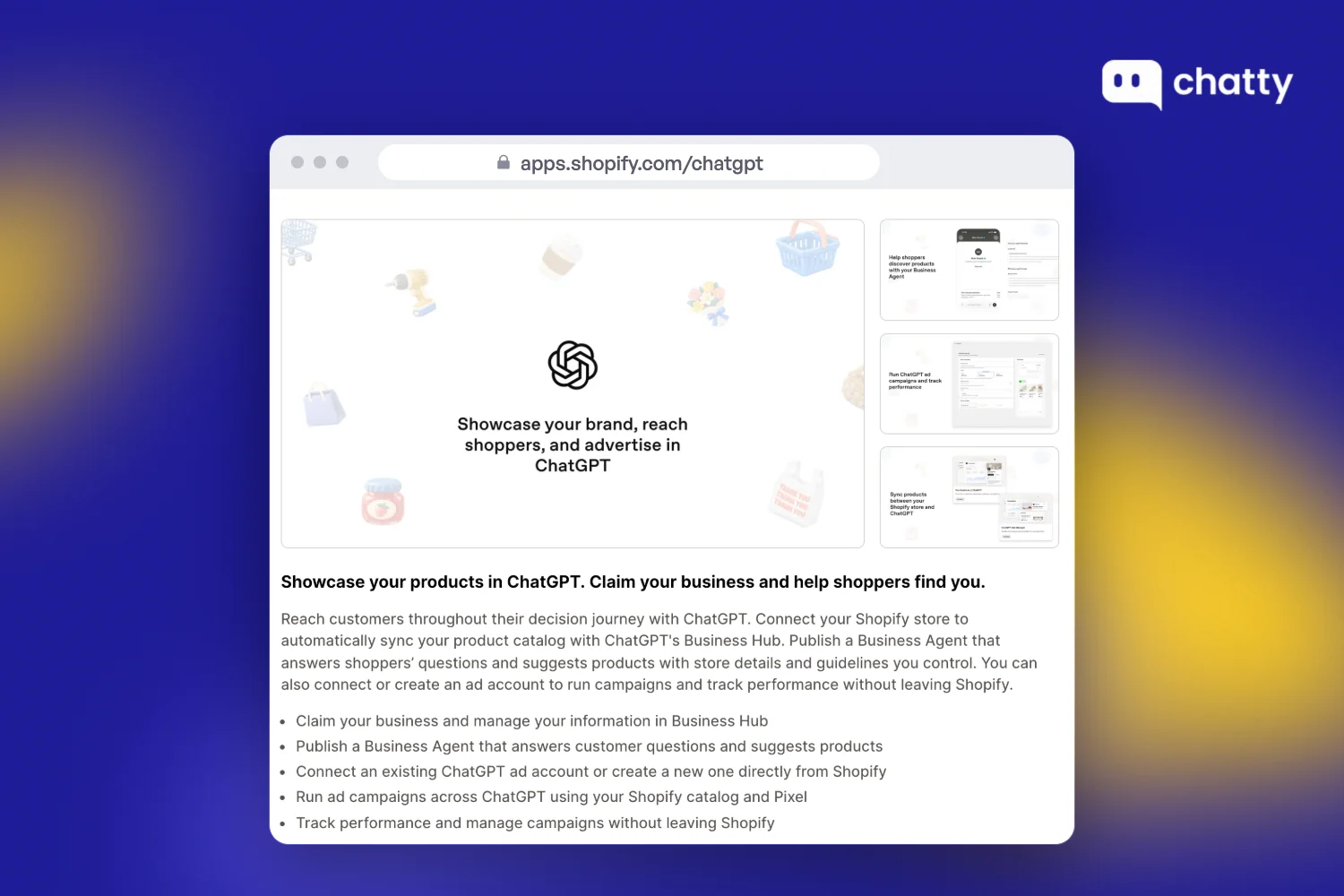
Image via Shopify App Store.
If you don't use Shopify: open Business Hub from the ChatGPT sidebar or go to chatgpt.com/business-hub. Search for your business name, select the matching listing or create one, and confirm the ChatGPT account that will manage it. The Claim your business button on OpenAI's page leads to the same place.
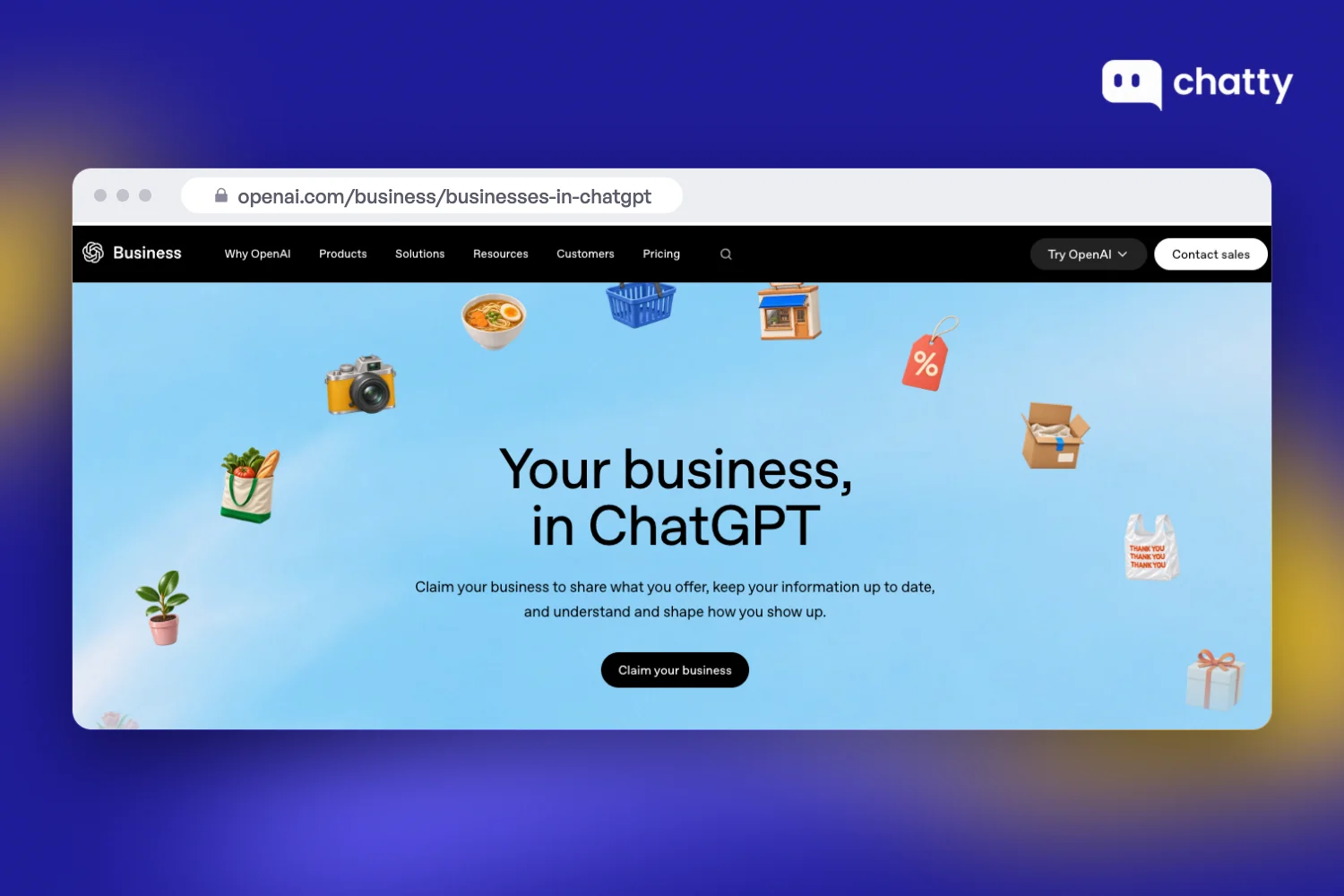
Image via OpenAI.
Step 3: Verify with DNS rather than phone
OpenAI offers up to four ways to verify: your business phone, your business email, a DNS record on your domain, or a Shopify connection. You only see the methods that apply to your business. Phone verification failed for one tester on launch day because of the load. DNS took the tester from Step 1 about fifteen minutes.
To verify by DNS, choose Website domain in Business Hub. It shows a TXT record with three parts: the type (TXT), a host name and a value that starts with openai-business-claim=. Copy all three exactly as shown, because the host name can differ between businesses.
Add the record where your domain is managed. If Shopify manages your domain, open Settings > Domains, select the domain and add a custom TXT record in its DNS settings. Then go back to Business Hub and select Verify domain.
Watch the host field. Most DNS editors add your domain to it for you, so delete your domain from the end of the host name before you save. Pasting the full name puts your domain in the record twice, and verification fails.
Add the record as soon as you copy it. Some users in OpenAI's announcement thread reported a token window of about 30 minutes, while other testers saw longer. If yours runs out, start the claim again and use the new token.
OpenAI then reviews the claim by hand and emails you its decision. It doesn't publish a review time.
Step 4: Pass the Persona ID check
An approved claim isn't the end. You still need Persona approval before you can publish profile changes, connect a product feed, view Insights or create an agent. The blue check appears when Persona approves you, not when OpenAI approves the claim.
Start the check from Verify with Persona in the Shopify app, or from your business profile in Business Hub. Use the legal business name, registered address and registration or tax number exactly as they appear on official records. Entering a trading name instead of your registered name is an easy way to fail the match.
If you're creating a new profile rather than claiming an existing one, do Step 5 before you submit. OpenAI's approval publishes a new profile automatically, with no separate publish step.
Step 5: Fix your profile and policies before you publish
According to OpenAI's setup guide, support can't delete, unpublish or hide a published profile. You can keep editing after you pass Persona, but whatever goes live first is what ChatGPT can use while you fix it. Run this checklist on the draft:
- Description: says what you sell, who it's for and where you ship. One tester found the field capped at 300 characters with no counter.
- Category: the closest match to what you sell.
- Website: your main domain, not the myshopify.com address.
- Contact: a support email and phone number someone checks every day.
- Hours: your support hours with a time zone, so "When can I reach you?" gets a correct reply.
- Delivery policy: paid or free delivery, processing time, delivery time and countries served.
- Return policy: the window, item condition, who pays return shipping and any exceptions. Replace any prefilled value that doesn't match yours.
- Products: compare price and stock for three products against your store.
Write the delivery and return policies in full rather than accepting prefilled text. Example 1 below shows a before and after.
Step 6: Confirm it worked
Check three things:
- Blue check: your profile shows it.
- Status: Business Hub shows the profile as published.
- Baseline: your five prompts, rerun in a temporary chat, pick up the details you set.
For a first safe test, ask one question that only your new profile can answer correctly, such as your return window. If ChatGPT still repeats the old version, it may be drawing on another page. OpenAI notes that ChatGPT may also use other sources besides your profile, so fix or remove any old page that says something different.
Don't worry if Insights stay empty for a few days. Testers reported blank dashboards right after verifying.
How to read your Insights
Once your profile is live, Insights is where you see what ChatGPT does with it. OpenAI's setup guide describes aggregate activity over the past 28 days. Early dashboard screenshots also show a 7-day view and a separate Agent insights tab for US stores with an agent. Treat those details as beta layout that may change.
| Metric | What it counts | What it doesn't tell you |
|---|---|---|
| Mentions | For an online store, times ChatGPT referenced your website | Which prompts led to the mention |
| Website clicks | Recorded clicks on links to your site inside ChatGPT | Visits or sales |
| Profile views | Not defined by OpenAI at the time of writing | Treat it as a rough signal only |
| Discovery topics | The top five themes in ChatGPT replies that mentioned or cited you | Individual prompts or buying intent |
Clicks need the most care. Shopify's help center describes this number as visits. OpenAI's dashboard tooltip is stricter: "Clicks don't confirm website visits or conversions."
To count real visits, filter your Shopify analytics for sessions referred by chatgpt.com. Links from ChatGPT usually carry the tag utm_source=chatgpt.com, which makes them easy to filter.
A blank cell usually means you're below a reporting threshold or the data is still being collected. OpenAI doesn't publish the threshold.
Because the dashboard doesn't keep a long history, copy the numbers into your own sheet once a week:
| Week of | Mentions (7 days) | Website clicks (7 days) | Shopify sessions from chatgpt.com | New discovery topics | What you changed |
|---|---|---|---|---|---|
| 17 Nov | |||||
| 24 Nov |
The last column matters most. Without it, you can't link a jump in mentions to anything you did.
4 examples of what to change after you claim
The steps get you a verified profile. These examples show what to do with it. They follow one illustrative store, not a real customer: Wick & Field, a four-person candle shop in Ohio that ships across the US.
Example 1: Fix the shipping time ChatGPT got wrong
What the store saw: in the Step 1 baseline, prompt 2 returned "ships in 5 to 7 business days". That came from an old FAQ page. The store actually ships within 2 business days.
Before (delivery policy): "Shipping times vary. See our shipping page for details."
After: "Orders ship from Columbus, Ohio within 2 business days, and US delivery takes 3 to 5 business days after that. Shipping is free over $50 and $6.95 below that. We don't ship outside the US."
The store also updated the old FAQ page, since ChatGPT can still read it. What to check: a week later, rerun prompt 2 and look for "2 business days".
Example 2: Write a description that fits 300 characters
Before: "Welcome to our little shop! We pour our hearts into every candle we make, and we can't wait for you to find your new favorite scent."
After: "Hand-poured soy candles made in Columbus, Ohio. Scents for home and gifting, from 4 oz travel tins to 16 oz three-wick jars. Ships across the US within 2 business days, free over $50."
The after version answers four questions: what, made where, which sizes, and how it ships. It runs under 200 characters, which leaves room if the store adds a line later. What to check: prompt 1 should now describe soy candles, not "a home goods store".
Example 3: Turn a discovery topic into a page fix
What the store saw: in week 4, "candle gifts with wrapping" appeared in the top five discovery topics. The store offered gift wrap at the packing table but said so nowhere on the site.
The change: the store added a gift wrap option to its product pages and this FAQ entry:
Can I add gift wrapping? Yes. Choose gift wrap for $4 on the product page, and add a note at checkout. We hand-write it and leave the price off the packing slip.
What to check: ask ChatGPT "Which candle shops offer gift wrapping and ship in the US?" over the next few weeks. Topics are themes, not the exact prompts, so you test the theme in your own words.
Example 4: Draft Business Agent guidelines (US stores only)
The Business Agent works from guidelines you write, and OpenAI checks your business category and intended use before the agent goes live. Shopify's help center confirms your Agentic Storefronts knowledge base doesn't carry over, so write the guidelines from scratch. Wick & Field's version follows this frame:
About us: Hand-poured soy candles from Columbus, Ohio. We ship within the US only.
Recommend: For gifts under $30, suggest the 8 oz jar. For large rooms, suggest the 16 oz three-wick jar.
Always say: Orders ship within 2 business days. US shipping is free over $50.
Never say: Don't promise a delivery date. Don't call any candle non-toxic or safe for pets.
Send elsewhere: For order status or damaged items, link to the contact page.
Tone: Warm, short, plain.
Keep the "Never say" line strict. OpenAI's Business Agents policy bars invented offerings, prices, availability and reviews, as well as false urgency. OpenAI can suspend or remove an agent that breaks it.
Our guide to building a knowledge base helps if you're starting from a blank page. What to check: preview the agent with your five baseline prompts plus one edge case, such as "Can I return a burned candle?"
Businesses in ChatGPT vs Google Business Profile vs Google Search Console
Some SEOs already call Business Hub the ChatGPT Search Console, but the name only half fits. You edit the facts shown about you, as in Google Business Profile, and you get counts, as in Search Console. It matches neither.
| Businesses in ChatGPT | Google Business Profile | Google Search Console | |
|---|---|---|---|
| Covers | ChatGPT only | Google Search and Maps | Google Search |
| What you control | Profile, policies, product feed, agent guidelines | Listing details | How your pages get crawled and indexed |
| Shows the queries people used | No, only themes | Partly, as a list of search terms | Yes, the queries that showed your site |
| Best for | Correcting facts and spotting topics in ChatGPT | Keeping local details right | Finding why pages rank or don't |
| Where it taps out | No prompts, 28-day history | Doesn't touch ChatGPT | Doesn't touch ChatGPT |
Keep Search Console and your Shopify analytics. Business Hub adds a ChatGPT view to them; it doesn't replace either one. It also says nothing about Gemini, Perplexity or other AI assistants.
Limits and troubleshooting
Two limits come with the beta, and no setting changes them.
You never see what shoppers asked. OpenAI's announcement says it doesn't share people's conversations or Business Agent chats with businesses. Rerun your baseline prompts each month to see what ChatGPT says about you.
Claiming adds accurate facts, not rankings. Keep working on product pages and reviews the way you already do, because the profile won't do that job for you.
Most other problems have a fix:
| Symptom | Likely cause | Fix |
|---|---|---|
| Phone code never arrives | Load at launch, or the number doesn't match the listing | Switch to DNS or connect your Shopify store |
| DNS check keeps failing | Token expired, or the host field doubled your domain | Start again with a new token, and remove your domain from the end of the host name |
| Persona rejects you | Name or address doesn't match official records | Resubmit with your registered legal details, not your trading name |
| Persona demands a VAT number you don't have | UK sole traders reported the field as mandatory | No published workaround yet. Contact OpenAI support |
| Website field says verification is still processing | The claim is still under review | Wait for OpenAI's email, then edit |
| Insights are blank | Below the threshold, data delay or Persona pending | Check again in a week and keep logging your baseline |
| Someone else claimed your business | Another account got there first | Open the profile, use the menu to Dispute ownership, and verify with Persona |
5 mistakes in your first week
Most first-week damage comes from five mistakes: the wrong account, placeholder policies, clicks read as sales, no log, and over-promising guidelines.
1. Claiming with a staff member's personal login
It feels faster on day one. If that person leaves, so does your access to the listing. Instead, claim with a ChatGPT account tied to a business email.
2. Publishing with default or placeholder policies
Prefilled policy text may not match your real terms, and whatever goes live first is what ChatGPT can use. Instead, finish the Step 5 checklist on the draft first.
3. Reading website clicks as visits or sales
A click counted inside ChatGPT doesn't mean the page loaded or anyone bought. Instead, report sessions with utm_source=chatgpt.com and orders from those sessions.
4. Skipping the baseline and the weekly log
The dashboard doesn't keep your history for you. Instead, save your five baseline replies before you claim and copy the numbers every week.
5. Over-promising in agent guidelines (US stores)
Lines like "fastest shipping in the US" or "only 2 left" break OpenAI's agent policy and can get the agent suspended. Instead, state facts you can prove and list what the agent must never claim.
Claim it this week, then fix what ChatGPT says
Businesses in ChatGPT won't make ChatGPT recommend you more often. It gives you a say in the facts ChatGPT can use about your store, and a first count of how often it brings you up. That's worth doing now, while it costs nothing.
This week, run the five baseline prompts, verify with DNS or Shopify, and fill the Step 5 checklist before Persona publishes anything. Then judge it by one measure: in four weeks, the same five prompts should return your real shipping time and return policy.
Once your profile is right, read our Shopify agentic commerce guide for the other half: how shoppers in ChatGPT end up buying.
Frequently asked questions
Yes, it can. ChatGPT already describes and links to businesses from public sources, and it may keep using them after you claim. Claiming adds information you control and gives you Insights, so skipping it leaves ChatGPT working from whatever it finds, outdated FAQ pages included.
No. You can verify with a business phone, business email or a DNS record instead of Shopify. Without Shopify, you upload a product feed yourself as a file that follows OpenAI's product feed format, with core fields such as title, price, availability and product URL. Shopify stores skip that work, because the catalog syncs when you connect the store.
Not well yet. OpenAI's Benji Shomair told Adweek that features for multi-unit businesses will be built out over time. For now, expect to verify and manage each business profile on its own, with its own website and Persona check.
Not yet, for most stores. Sponsored Business Agents are in a limited test with selected advertisers. Shomair told Digiday that the sponsored agent is the paid experience, but the agent behind it should be the same one you build for free.
No. The Business Agent replies to questions about your products and policies, but it doesn't complete purchases. Shoppers move to your website to buy, so checkout stays on your store. When the agent is live, Shopify lets you get a permalink to share it on your site, social media and other channels.
OpenAI hasn't given a date. Its announcement says the program will expand to more regions where ChatGPT is available, and the agent policy notes that verification alone doesn't make a business eligible. Until then, check the agent section of Business Hub once a month, and keep your guidelines draft from Example 4 ready for the day it opens.